- Bluetooth®, Android Auto™ & Apple Carplay™
- Connected services
- EASY CONNECT Store
- MY Renault application
You can connect your phone via Bluetooth® with EASY LINK to:
- Make hands-free calls;
- Listen to music.
Make sure your smartphone is updated with the most recent software version.
You can check the compatibility of your smartphone with EASY LINK on https://easyconnect.renault.fr/phone-pairing.
To launch a test, you need to know:
- Your phone model and your OS version;
- Your EASY LINK system version.
Note: Several times a year, Renault tests a wide range of phones to ensure the compatibility of the various features available on board. Your phone may not yet have been tested by our teams and some features may not always be available on some phone models.
Step 1: Make sure your phone is correctly paired with your EASY LINK and that the media function is enabled (the media icon is highlighted in white).
Note: If you have trouble pairing your phone, see our FAQ "I cannot pair my phone with my EASY LINK" in the same help section.
Step 2: Once your phone is paired with your EASY LINK system, go to the multimedia menu and click on Media. Choose the "Bluetooth®" audio source and select music on your phone.
Note: Some phones do not activate the media function unless they contain at least one music file. Check if you have at least one song stored in your phone's memory.
Your phone can be paired with EASY LINK via Bluetooth® by pressing the "Phone" widget or, if another phone is already connected, press the "Phone" shortcut at the top of the screen.
To pair your phone with the EASY LINK system, follow the steps below:
From your phone:
- Make sure that the Bluetooth® on your phone is activated and set its status to "visible";
- Depending on the model and if the system requires it, enter the Bluetooth® code on your phone to pair it with the multimedia system or confirm the pairing request;
- Your phone may ask for authorisation to share your contacts, your call log, your media, etc. Accept sharing to see this information on the multimedia system.
From the main menu of your EASY LINK:
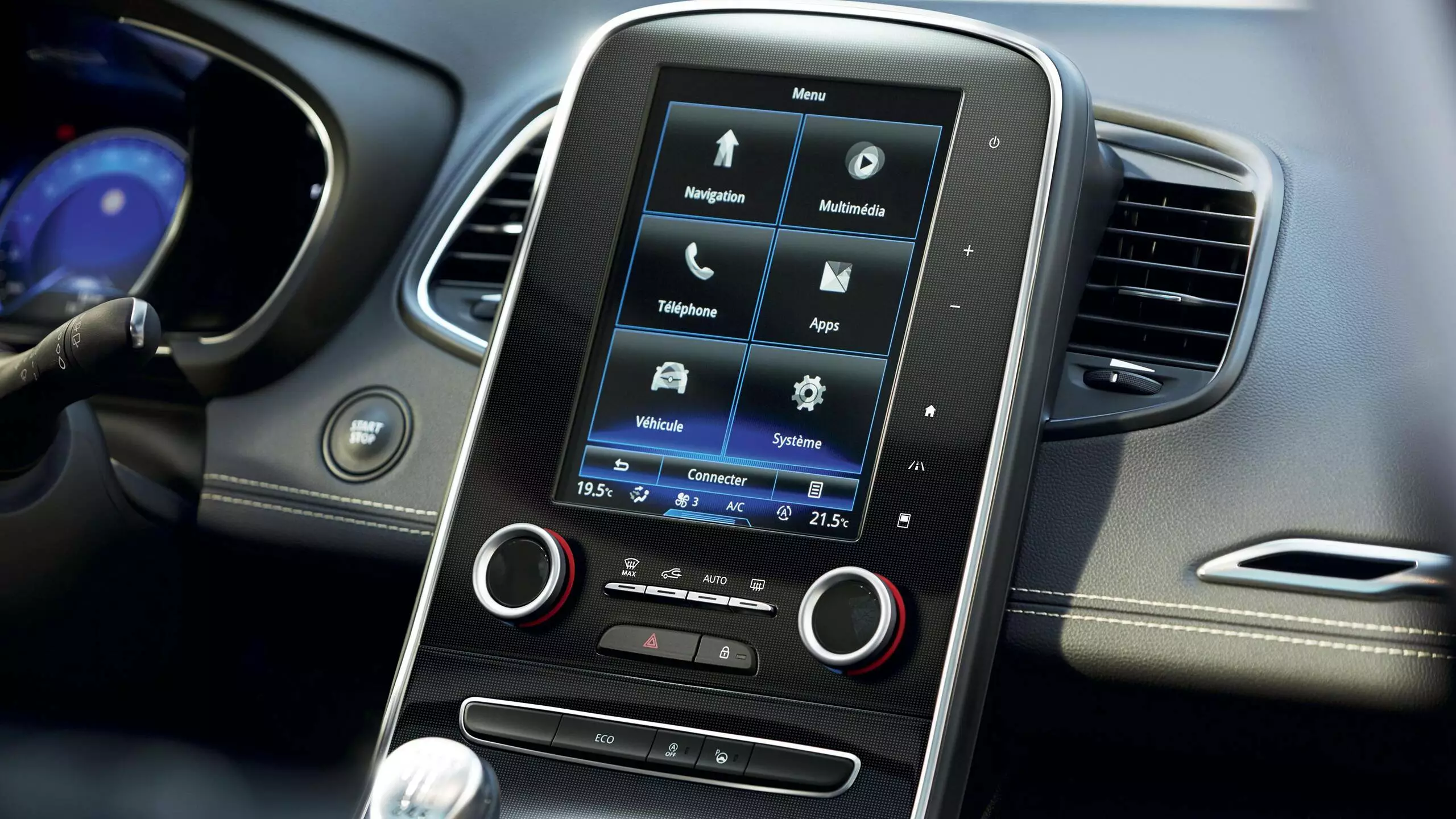
- Press "Phone". A message is displayed on the screen asking your to pair a phone;
- Press "Yes". The multimedia system searches for nearby phones with Bluetooth® activated;
- Select your phone from the list proposed;
- Select the functions of the phone to be paired;
- "Phone" function: access to the phonebook, make and receive a call, access the call log, etc.;
- "Media" function: access to music;
- "Hotspot" function: Internet access via the phone;
- Click "OK" to confirm. The function's icon shows you if it is activated;
- Your phone is now paired with the multimedia system.
Note: The multimedia system can save up to 6 phones.
If you have not authorised contact synchronisation, you can do so at a later stage. In the "Bluetooth®" menu of your phone, select "RENAULT", then "synchronise contacts".
Step 1: Make sure that your phone is correctly paired with your EASY LINK system.
Note: If you have trouble pairing your phone, see our FAQ "How do I connect my phone with EASY LINK?" in the same help section.
Step 2: To make a call, please go to the phone menu and press "Contacts". Your contacts are automatically imported to your EASY LINK screen. Select the contact you want to call and press the number to make a call.
You can make a call by selecting:
- A number in the call history from the "History" menu;
- A contact in the phonebook from the "Phonebook" menu;
- Keypad keys from the "Dial" menu.
To answer a call, you can pick up directly by tapping the green button that appears at the top of the screen.
You can also pick up/hang up a call directly by pressing the button on the steering wheel.
Step 1: If you have trouble pairing your phone with EASY LINK, please see our FAQ "How do I connect my phone with EASY LINK?" in the same help section.
Step 2: If the pairing is still not working, please test the phone's compatibility online.
To launch a test, you need to know:
- Your phone model and your OS version;
- Your EASY LINK system version.
Specific sections on the compatibility verification page explain how to find this information.
Step 3: If you do not find positive results on our online compatibility test or you cannot find your versions on the list:
- Try to update the OS version on your phone if an update is available;
- If the result of our online compatibility test is positive, this means that the pairing process should work and there may be a more specific problem. Please call our Customer Support and indicate that you have already followed the steps above so that we can help you as best we can.
- Before using Android Auto™ for the first time, you must first download the Android Auto™ application on your smartphone;
- Connect a compatible phone (minimum Lollipop 5.0) with a Samsung certified cable;
- Launch the Android Auto™ application;
- Go back to the Renault interface by clicking on "Renault" at the top of the screen;
- Switch back over to the Android Auto™ interface by clicking on "Android Auto™" at the top of the screen.
To enable Android Auto™ voice recognition: OK Google, you have several options:
Method 1: Press and hold down the "Push To Talk" button located on the steering wheel until you hear an audible beep.
Method 2: Tap the "microphone" icon located in the top right-hand corner of your screen when you are using Android Auto™. You will then hear an audible beep.
Method 3: Say the words "Ok Google", Android Auto™ then makes an audible beep.
The OK Google voice control allows you to control certain applications vocally, such as making a call, playing music, sending and replying to text messages, using maps and obtaining routes, creating reminders, etc.
e.g. "Call 'contact name'", "Send a message to 'contact name'", "Create a route for 'address'", etc.
Android Auto™ comes with 4 native applications:
- Google Maps;
- Phone;
- Text messaging;
- Play Music.
On the Google Play Store, you can install additional applications that are compatible with Android Auto™ such as Waze, WhatsApp or Spotify and Deezer.
To see the list of compatible applications, go to this link: g.co/androidauto.
Note: Only applications certified by Google and downloaded to your smartphone can be used on Android Auto™ while driving.
First of all, make sure that you are in an area where CarPlay is accessible.
To connect your iPhone with Apple CarPlay™, follow the steps below:
- Get behind the wheel of your vehicle;
- Unlock your iPhone's screen;
- Connect your smartphone to the EASY LINK multimedia system via a compatible USB cable;
Note: Apple recommends using certified cables to avoid disconnection or other bugs.
- Accept CarPlay authorisation for EASY LINK;
- Click on the "Apple CarPlay™" button located in the top middle of your EASY LINK to access the Apple CarPlay™ homepage;
- You can now use your iPhone from your EASY LINK.
Note: Your iPhone can still be used even if it is connected via the USB cable.
If Wi-Fi and Bluetooth are off, the iPhone suggests activating them or connecting the USB cable. However, Apple CarPlay™ can only work with the USB cable. So press "USB only" on your iPhone
To use Apple CarPlay™, you must have an iPhone 5 or later model and iOS 7.1 or above.
Note: To ensure compatibility of your smartphone with Apple CarPlay™, we recommend installing all available software updates.
Activating your services
Google address search
To access the EASY CONNECT Store, you must first create your account in MY Renault. Please follow the steps below:
- Go to the MY Renault page;
- Click on "Register". Fill out the form with your personal information and accept the conditions.
Note: Your password protects access to your account. Keep it safe.
- Click on "Create my account";
- An email will be sent to your inbox;
- Open it, then click on the activation link.
Note: If there is no activation email in your inbox, please check your spam folder.
- You can now access the EASY CONNECT Store by connecting to your MY Renault account.
To add your car to your MY Renault account, follow the steps below:
Go to https://www.renault.fr/connexion-inscription-my-renault.html
- Log in;
Note: If you haven't yet created your account, please see our FAQ "How do I access the EASY CONNECT Store?" in the same help section.
- Click on "Add a car";
- Enter the Vehicle Identification Number (VIN);
Note: If you don’t know the VIN, please see our FAQ "Where can I find my VIN?".
- Click on "Add My Renault".
You car is now added to your MY Renault account.
If you cannot add your vehicle to the MY Renault virtual garage, please follow the steps below:
- Log out of your MY Renault account;
- Delete the cookies from your browser;
- Disable the Adblocker;
- Log back in to your MY Renault account;
- Reassign your vehicle to your MY Renault account.
Renault EASY CONNECT Store allows you to do several actions:
- Consult the catalogue of applications and services available for your car. You can buy or renew services from the "Catalogue" section;
- Consult the current status of your service contracts to see which services are active on your car from the "My Services" section;
- Update your EASY LINK system and the maps to always drive with the latest available version. You can do this in the "Updates" section;
- Lastly, you can consult the help section where you will find useful answers to the most frequently asked questions and find explanations on procedures.
Note: To access the Renault EASY CONNECT Store, you must log in to your MY Renault account and go to the "EASY CONNECT Store" tab.
- Go to your MY Renault account;
- Select your vehicle (enter the VIN);
- Click on EASY CONNECT Store;
- Go to the "Catalogue" or "My Services" tab to get information about the services available on your EASY LINK.
- Check whether you have authorised data sharing and activated the connectivity on your EASY LINK;
- Check if your vehicle is in a network coverage area;
- You can go to the EASY CONNECT Store to see information about your services.
- Go to your MY Renault account;
- Select your vehicle (enter the VIN);
- Click on EASY CONNECT Store;
- All the services listed are eligible with your vehicle. You can find all the installation and update information in the product sheet corresponding to your service or on the EASY CONNECT website.
- Check whether you have authorised data sharing and activated the connectivity on your EASY LINK;
- Check if your vehicle is in a network coverage area;
- Standard services on your vehicle are automatically installed if you are in a covered area;
- You can go to the EASY CONNECT Store to see information about your services.
- You can find information on how to use the services on each product sheet. Some services can be used directly on your on-board system, whereas others require you to download the MY Renault application;
- Check if your vehicle is in a network coverage area;
- You can find the information about your services in the EASY CONNECT Store or on the Renault EASY CONNECT website.
To renew your connected services:
- Log in to your MY Renault account;
- Go into the EASY CONNECT Store tab;
- If you are nearing the end of your contract, the service will be offered again in the "Catalogue" section. All you have to do is select the offer you want to subscribe to, pay for your purchase, then enjoy your extended service!
- Log in to your MY Renault account: Enter the Vehicle Identification Number (VIN);
- Go to the EASY CONNECT Store page;
- The status of each of your services is indicated in the 'My Services' tab on the EASY CONNECT Store page;
- To activate your services, make sure that you have authorised data sharing and activated connectivity on your EASY LINK multimedia system;
- Check if your vehicle is in a network coverage area;
- Your service will be activated and will change to active status within 72 hours of the connectivity activation operation. If not, please contact your customer support.
To benefit from the connected services in the MY Renault application, you must have a smartphone with software version:
- 6 or above for Android;
- 11 or above for iOS (compatibility with iPhone).
To create your account in the MY Renault application and access all of its content, follow the steps below:
- Download the MY Renault application free of charge from the App Store or Google Play;
- Launch the MY Renault application;
- Click on "Register". Fill out the form with your personal details and accept the conditions of use;
Note: Your password protects access to your account. Keep it safe.
- Click on "Register";
- An email will be sent to your inbox. Open it, then click on the activation link;
Note: If there is no activation email in your inbox, please check your spam folder.
- Return to the app's home screen. Click on "Log in" then enter your email and the password that you have chosen. You are now logged in.
To add your car to your MY Renault account, follow the steps below:
- Launch the MY Renault application;
- Log in;
Note: If you haven't yet created your account, please see our FAQ "How do I create an account in the MY Renault application?" in the same help section.
- Click on the "Car" icon in the bottom left-hand corner of the screen then on the "+" button in the top left-hand corner of the screen;
- Enter the Vehicle Identification Number (VIN);
Note: If you do not know the VIN of your car, please see our FAQ "Where can I find the VIN of my car?" in the same help section.
- Click on "Add my car";
- You car is now added to your MY Renault account. You can consult the list of your cars in your MY Renault account at any time and add others via the "car" button in the bottom left-hand corner.
Yes, you can add several cars to one MY Renault account.
To do this:
- Launch the MY Renault application;
- Click on the 'Car' icon in the bottom left-hand corner of your screen;
- Scroll down;
- Click on 'Add a car' at the bottom of the page.
Note: If necessary, you can consult our FAQ "How do I add a car to my MY Renault account?" in the same help section.
Synchronising your MY Renault application with your car is a necessary step to benefit from the connected features of your MY Renault application.
To synchronise your MY Renault application with your car, please follow the steps below:
- Download the MY Renault application from the App Store or Google Play;
- Log in or create your MY Renault account;
- Add your Renault car to your MY Renault account, if it is not already present. To do this, go to the "Car" menu in the bottom left-hand corner of the screen or click on the "+" button in the top right-hand corner of the screen and follow the suggested steps;
Note: For more details, please see our FAQ "How do I create an account in the MY Renault application?" in the same help section.
- Once the car has been added to your account, click on the "Synchronisation" button and then on "SYNCHRONISE MY RENAULT" and follow the steps described in your application;
- At the end of your journey, enter the code that appears on the central screen of your car in the MY Renault application;
Note: If the notification disappears before you have entered the code, you can find it again by clicking on the small "post-it" icon at the top of your screen.
If, however, you do not receive the notification containing the code in the central screen of your car, wait for 5 minutes then restart the synchronisation from the MY Renault application.
- Click on "Let's go";
- Congratulations! You car is now connected to your MY Renault application. You can benefit from all of the services offered by MY Renault in next to no time.
Note: If, however, the conditions were not met to synchronise successfully, let us guide you step by step with the MY Renault application. In particular, if you have just activated your services in your car, wait a few hours before synchronising your MY Renault account with the vehicle.
It is possible to add several cars to your MY Renault account. However, it is not possible to have the same car synchronised with several MY Renault accounts.
Note: Please see our FAQ "Is it possible to add several cars to one MY Renault account?" in the same help section.
Here are several possible reasons:
- Only cars with an EASY LINK multimedia system are eligible for synchronisation;
- Check that your EASY LINK system is enabled. To do this, check if the CONNECTION button appears on your navigation screen. If if appears, your services are not activated. You will then have to tap CONNECTION;
- Check that you have authorised data collection from your vehicle. A message tells you the status each time you start the car;
- Check that your smartphone and your car are in the network coverage area;
- Check that you have entered the correct synchronisation code.
To benefit from your services in the MY Renault application, these services must be activated beforehand in your car.
To activate the services in your car, follow the steps below:
- In a network coverage area, sit in the driver's seat, with the engine off.
- Switch on the central screen of your vehicle and click on "Connection";
- Click again on "Activate", then on "Yes" to accept data collection from your car;
- A confirmation screen then appears in your system, telling you that within a few hours, you will be able to enjoy your services in your car.
To enjoy your services from the MY Renault application, you must also synchronise your MY Renault application with your car.
To synchronise your car with your MY Renault application:
- Log in to the MY Renault application;
- Go to the "Car" page in the bottom left-hand corner of your screen;
- Click on "Synchronisation" and follow the steps described in the MY Renault application;
- For more details on synchronisation, you can refer to the FAQ "How do I synchronise the MY Renault application with my car?" in the help section.
The VIN is your car's Identification Number. It is composed of 17 digits.
You can find it on your car registration certificate in section E or in the bottom left-hand corner of your windscreen.
The VIN is necessary for adding a car to your MY Renault account.
You can change your email address linked to your MY Renault account by following the steps below:
- Launch the MY Renault application;
- From the menu bar at the bottom of the screen, click on the "My Profile" icon on the far right;
- At the bottom of this page, click on "Change my email";
- Enter your new email address;
- Enter your password;
- Confirm.
To send your destination to your car from the MY Renault application, follow the steps below:
- Launch the MY Renault application;
- Click on the second 'Navigation' icon at the bottom of the screen;
- Type the desired destination in the search bar;
- Select the address;
- Click on the "Route" button;
- Click on "Open with";
- Select your vehicle's icon;
- Get behind the wheel of your Renault;
- Switch on your multimedia system. The chosen destination automatically appears on your on-board screen. All you need to do is accept it.
You can find a Renault dealership from your MY Renault application:
- Launch the Application;
- Click on the second "Navigation" icon at the bottom of the screen;
- Tap "+" on the right side of the map;
- Select the "Dealerships" icon;
- The nearest dealerships are displayed;
- By clicking on a dealership, you will have access to its opening times and contact details.
First, check that your vehicle is connected with active data sharing.
- Download the MY Renault application;
- Synchronise your car with the application (please see our FAQ "How do I synchronise the MY Renault application with my car?" in the same help section);
- There are 2 possible scenarios;
- If the services are active, you can use them free of charge until the end of the contract;
- If the services have expired, you can renew them from the EASY CONNECT Store.
To prepare your car for resale, please follow the steps below:
- Remove your car from the MY Renault application;
Note: Please consult our FAQ "How do I remove my car from the MY Renault application?" in the same help section.
- Delete your data in your multimedia system;
- Get behind the wheel of your car;
- Click on "Menu" in the bottom left-hand corner of the page;
- Tap the "INFO" icon;
- Click on "System" at the bottom of the screen;
- Press the "Reset" icon;
- Your vehicle is now ready for resale.
To remove your car from the MY Renault application, follow the steps below:
- Launch the MY Renault application;
- Click on the "Car" icon in the bottom left-hand corner of your screen;
Note: If you have several vehicles in your MY Renault account, choose the one you want to remove.
- Click "Remove my car" at the bottom of the page;
- Choose the reason for the deletion;
- Confirm deletion of your car from the MY Renault application;
- You car is now removed from your account.
Z.E. Connected services
Discover the answers to your questions about Z.E. connected services.
To schedule charging of your Renault ZOE through your EASY LINK screen, please follow the steps below:
• From the main Menu, click on "Settings", then "Vehicle" at the bottom of the screen;
• Open the EV menu and click on the "Charge" tab in the bottom left-hand corner of the screen.
• To programme charging, click on "Programme". Enter your preferences (start time, end time and days chosen). You can then view all of your settings from the "Calendar" tab.
• The days and times chosen are displayed by clicking on the arrow.
Note:
- You can configure up to 5 charging programmes on your EASY LINK
- The charge programming option is only available for Renault ZOEs equipped with the EASY LINK multimedia system with navigation.
To schedule the air conditioning in your vehicle through your EASY LINK screen, please follow the steps below:
- Click on the "Air conditioning" tab
- Go into the "Programme" tab
- Enter your preferences (start time, end time and days chosen)
If this does not work, check that:
- You have synchronised your application with your car correctly
- You are located in an area connected to the Internet
- To programme the air conditioning or heating, you must have at least 20% battery and have your car connected.
- For instant start, you must have at least 40% battery
- Log in to your MY Renault application to access the Z.E. connected services
- Go to the "Dashboard" page
- Press "Charge management" where you can create/modify your charging schedule.
- Choose the day(s) required, the time and duration of the charge.
- Click on "Save". Your vehicle's charging has now been scheduled.
- Click on "Use the charging schedule" to activate the service.
Note: Instant charging is not possible when the schedule is activated.
- When charging is activated, you can view the next scheduled charge with the date, time and duration on the "My Vehicle" page.
To start the air conditioning directly from the MY Renault mobile application, click on the button located below your car's range and battery status
To schedule the air conditioning, click on the "comfort" tab to access the scheduling options.
If this does not work, check that:
- You have synchronised your application with your car correctly
- You are located in an area connected to the Internet
- To programme the air conditioning or heating, you must have at least 20% battery and have your car connected.
- For instant start, you must have at least 40% battery
To get Z.E. connected services in the MY Renault application, you must have a smartphone with one of the 3 most recent Android or iOS versions.
To check the version used on your smartphone and find out how to update it, click on the following links:
- IOS: https://support.apple.com/fr-fr/HT204204 (to be localised)
- Android: https://support.google.com/android/answer/7680439?hl=fr (to be localised)
To access Z.E. connected services, here is the procedure to follow from a smartphone:
- Download the "MY Renault" application free of charge either from the Apple Store, or from Google Play.
- Create a MY Renault account
- Synchronise your car by clicking on "synchronise my car". You will then be guided step by step to connect your smartphone to your car.
No. You need to create an account via the MY Renault smartphone application to access these Z.E. connected services.
To renew your connected services, go to your customer space on the MY Renault site https://myr.renault.fr (to be localised), then go into the Store.
You will then be able to see the status of your services and renew them if necessary or buy new services.
From your MY Renault mobile application, you can prepare a route by identifying the charging stations that are the most suitable for your car throughout your trip.
By filling in your trip information (battery level, number of passengers, number of bags, etc.),you can obtain an estimated route simulating your trip and charge time.
As this trip is estimated, we cannot guarantee the availability of the charging points at destination.
Consult our user guides
Want to know more?

Need help?
Contact 0344 369 0000*
Monday, Tuesday, Wednesday, Thursday, Friday from 9:00 to 17:30 (including LiveChat)
Before you call, help us by having the multimedia software version installed in your vehicle, available. This can be found on the settings screen within your vehicle.
*Standard network rates apply from mobile or landline phones.


